Images to PDF Converter
Convert images to PDF online for free. Fast and secure image to PDF converter to merge JPG and PNG images into a single PDF file.
Image to PDF Converter: Convert Images to PDF Online for Free
Do you want to turn your photos, scans, drawings, screenshots, or multiple pictures into a single, neat PDF file that is easy to share, print, or store? The free online tool at https://www.image-extractor.com/image-to-pdf-converter helps you convert any regular image or group of images into PDF format very quickly. You don’t need to install any app, pay money, or sign up for anything. Just visit the page in your browser, upload your image (or images), click the convert button, and download the ready PDF file. The website keeps the design clean and simple – there is a clear upload area, one main button, and links to other converters like PNG to JPG, image to AVIF, image to AI, image to BMP, image to DDS, image to DIB, image to EPS, image to HEIC, and many more. This makes it easy to try different formats in the same place.
In this article, we explain everything about this tool using very simple English so that even children or beginners can understand. We talk about what PDF is, why people still use it a lot, when you should pick PDF, how to use the converter step by step, the main benefits, useful tips, things to avoid, real examples from daily life, answers to common questions people ask, and why this tool is a good option. Most parts are written in normal paragraphs, and only the really important lists (like benefits or steps when it makes sense) are shown in points.
What Is PDF Format?
PDF stands for Portable Document Format. It is a file type created by Adobe many years ago that keeps documents and images looking exactly the same no matter which computer, phone, printer, or software you open it on. A PDF file can contain one image, many images, text, shapes, or even multiple pages. When you convert images to PDF, each picture becomes one page (or more if you upload several). PDF supports high quality, compression, and sometimes searchable text if the images have words. PDF files end with .pdf. They are the most common format for sharing reports, forms, ebooks, scanned documents, photo albums, certificates, invoices, and anything you want to look professional and stay unchanged.
Why People Still Love PDF
PDF is still the number one choice for documents and image collections because it is universal – every phone, computer, browser, and printer in the world can open PDF files without problems. It keeps layout, fonts, colors, and images exactly as you created them. PDFs are great for printing, emailing, signing digitally, archiving, and sharing without worrying about changes. Most people search for “convert image to PDF” or “make PDF online free” when they need to combine photos into one file, turn scans into documents, create photo books, submit assignments, or send pictures professionally.
When You Should Convert Images to PDF
You should use this tool when you want to combine images into one easy-to-share file or make printable documents. It is ideal for scanned pages, photo collections, homework with pictures, invoices with images, certificates, resumes with photos, multiple screenshots for reports, creating simple photo albums, or sending pictures to people who prefer one file instead of many. If you need very small files for web only or editable images, formats like JPG, PNG, AVIF, or HEIC are usually better choices.
Step-by-Step Guide to Using the Converter
The whole process is very quick and simple. Here are the exact steps:
Step 1: Go to the Website
Open your browser and visit https://www.image-extractor.com/image-to-pdf-converter. The page loads with a spot to add your file.
Step 2: Upload Your Picture
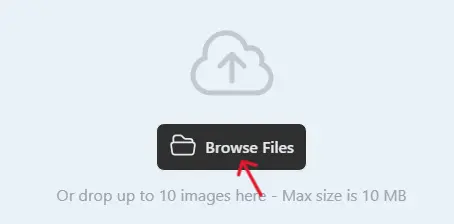
Click the choose file button or drag your image (like a JPG or PNG) from your device.
Step 3: Click Convert
Hit the "Convert" button. The tool reads your image and turns it into PDF format.

Step 4: Download the PDF File
When finished, a download link shows up. Click to save the .pdf file.

Done! No hard choices or settings. If your file is large, it might take a bit longer, but it's still fast. If there's a problem, try a smaller file or a different starting format.
Main Benefits of Converting to PDF
Here are the most important advantages in points:
- Combines many images into one single file – easy to share and organize.
- Looks exactly the same on every device and printer.
- Keeps high quality and sharp details.
- Supports multiple pages from multiple images.
- Great for printing, emailing, and archiving.
- Small file size compared to sending many separate pictures.
- Professionals look for documents, reports, or photo books.
- Opens in any browser or PDF reader.
Practical Tips for Good Results
Start with clear, high-quality images – good scans, sharp photos, or clean graphics give the best PDF pages. Arrange your images in the order you want before uploading, if possible. Use JPG for photos and PNG for sharp text or graphics. If the tool supports multiple uploads, select all pages at once for a multi-page PDF. After downloading, open the PDF on your phone or computer to check layout, quality, and page order. For best printing, use high-resolution originals. Keep originals safe so you can make a new PDF if needed.
Things to Avoid
Do not upload very low-quality or blurry images – the PDF will keep the same poor look. Do not use PDF for heavy editing later – it is best for final sharing or printing. Do not keep converting the same images many times – always go back to the originals. Remember that very large images can make big PDF files. If you see an error, check your internet or try fewer/smaller input files first.
Real-Life Examples
A student converts homework drawings and notes to PDF and submits one file to the teacher – easy and professional. A family turns vacation photos into a single PDF album and shares it with relatives. A small shop creates a product photos PDF for customers – one file instead of many pictures. An office worker scans receipts and converts to PDF for tax records – organized and searchable. A teacher combines student project images into PDF reports – simple to print and keep.
Why Choose This Image to PDF Converter
This tool is completely free, has a simple page without too many ads or pop-ups, asks for no email or sign-up, and is part of a big collection of image converters. For fast one-time use, combining photos, making quick PDFs for sharing or printing, it is perfect and very beginner-friendly.
Final Thoughts
The image to PDF converter at https://www.image-extractor.com/image-to-pdf-converter is a simple, fast, and free way to turn your images into neat, shareable, printable PDF files that work everywhere. Whether you want to combine photos, create documents, submit assignments, or make photo albums, this tool makes it super easy. Visit the link, upload your pictures, and try making your own PDF right now. You will get one clean file that looks professional and will probably use it again for many things!